
Example: Webhooks with Slack
Learn how to use Validin Webhooks to set up notifications for Slack
This example will help demonstrate how to use Validin's webhooks to enable workflows. This example specifically sets up webhooks in Slack, but this can be used for any application that you want to build using Validin webhooks.
Configuration in Slack
- In Slack, under the channel you want to receive Webhooks, click on More > Workflows. You might alternatively see + > Workflow.
- Click on Add Workflow and then Create a Workflow
- In the Workflow Builder, select the trigger event as From a webhook
- In the From a webhook popup, click Set Up Variables and configure the variables accordingly, based on the data source you're configuring webhooks for and the fields that Validin supports. You can find a list of fields here
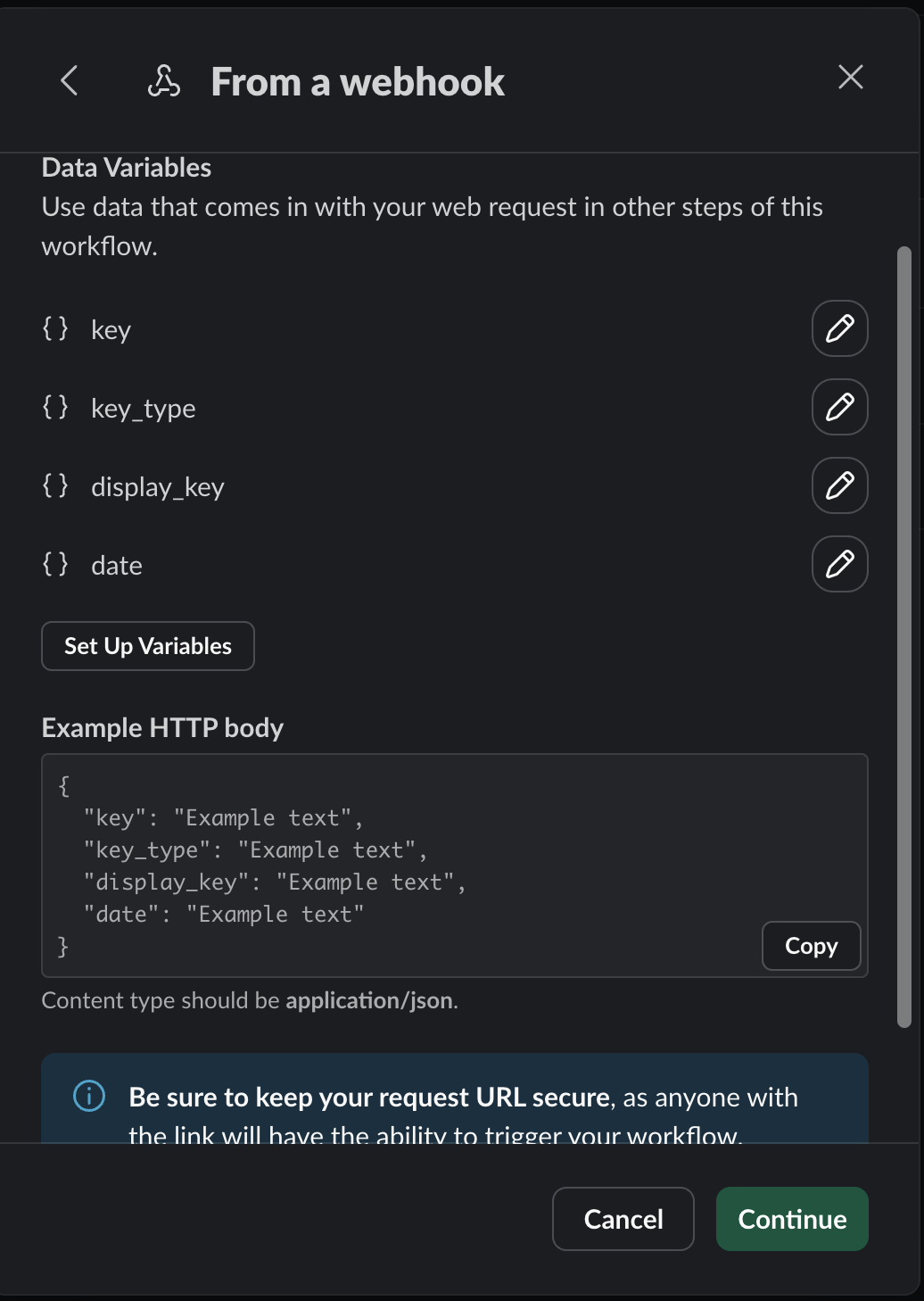
Setting up variables in Slack for new indicators and references observed in threat groups
- Click on Add Steps
- Select Send a message to a channel or Send a message to a person
- In the modal, select the channel or person you want to send messages to
- Use the variables that you set up to configure a message in a channel accordingly
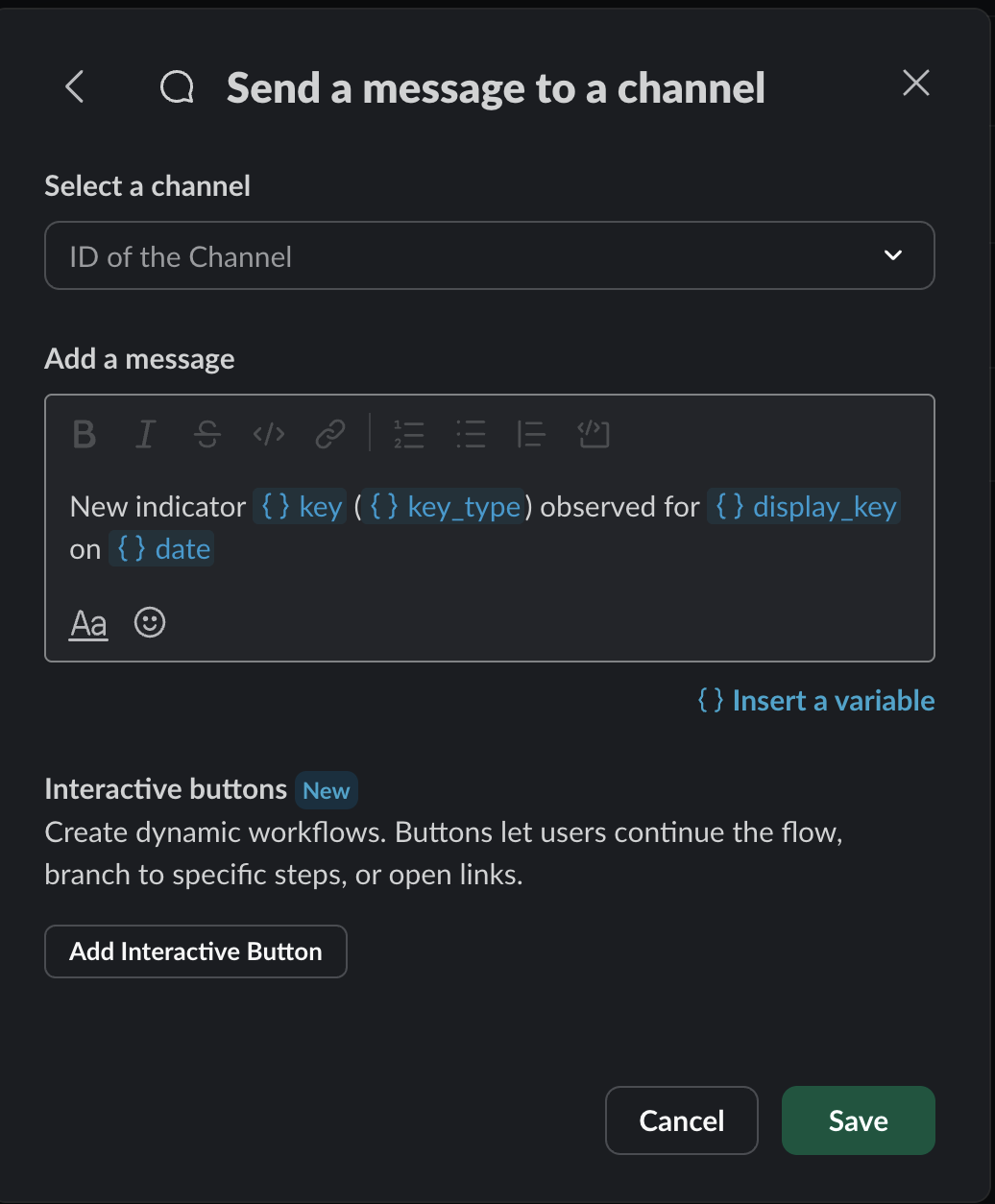
Configuration for sending a message in Slack
- Select Save
- Click on Finish Up in the top-right corner of the configuration page
- Give the Workflow a Name and a Description and select the correct Permissions
- Click Publish
Configuration in Validin
- In Validin, select Tools from the sidebar, and click on Webhooks
- Select Add a Webhook
- Configure a webhook by giving it a Name, Description, and the Webhook URL from what you configured in Slack.
- Under Events, click on Add to configure the projects and/or threat groups that you want to give this webhook access to.
Updated 7 months ago
Did this page help you?