
Manage a Project
Learn how to amend, delete, and share an existing project in Validin
This article describes how to modify an existing Project, including renaming it, updating its settings, deleting it, and managing collaboration permissions.
Amend a project
Projects can be amended from the Projects list, or within the Project itself.
Rename a project
You can rename a project directly from the Projects page:
- Open the Projects page
- Select the three-dot menu next to the Project name
- Choose Rename
- Enter the new name and click Rename
You can also rename the project from inside the Project workspace:
- Open the Project
- Select the pencil icon next to the Project title
- Enter the updated project name and save
Update project settings
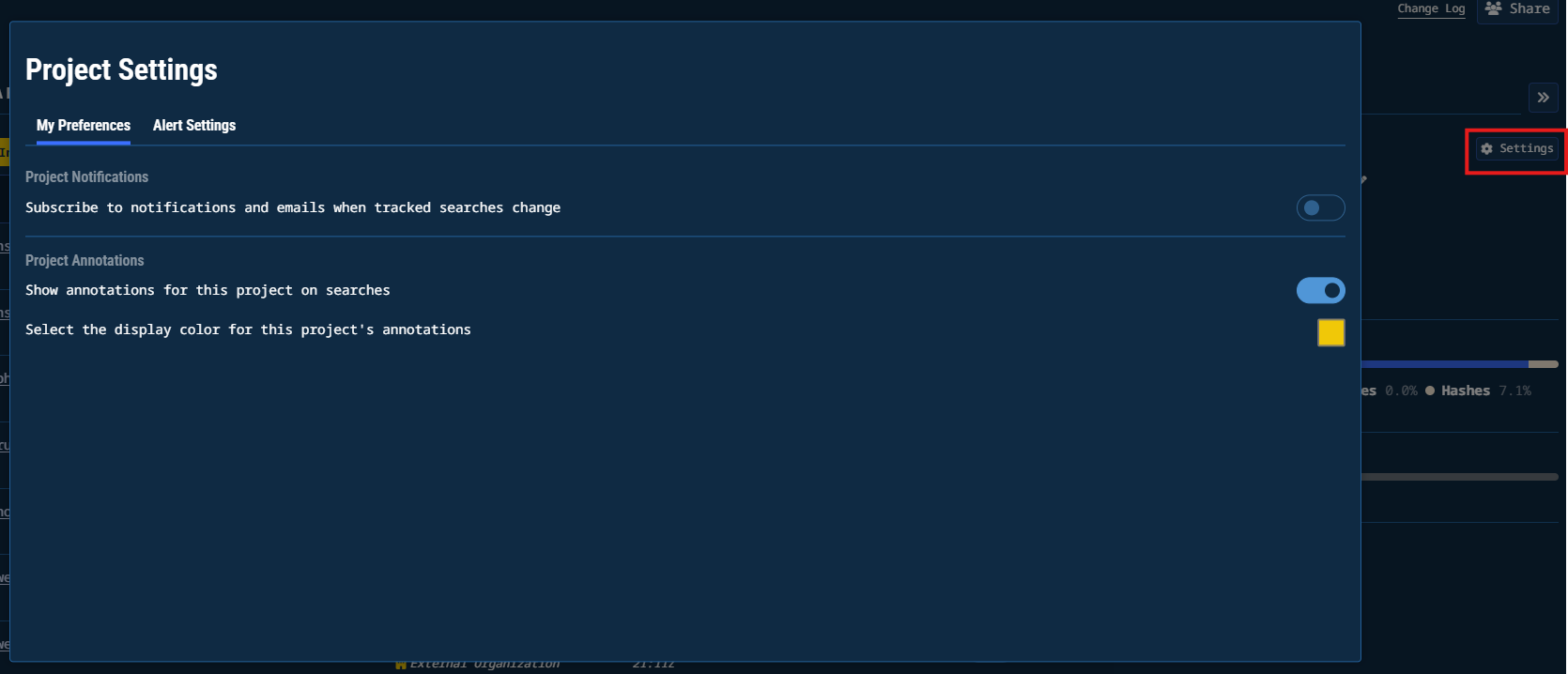
Select Settings in the Project Sidebar to modify configuration options. Settings include:
- Project Notifications: Subscribe to notifications and emails when tracked searches change
- Project Annotations: Show annotations for this Project on searches, and select the annotation color
- Alert Settings: Enable Automatically Track Changes for newly added IOCs and configure which DNS, host response, registration, OSINT, and subdomain attributes will generate alerts
Delete a project
A project can be deleted from the Projects page.
- Open the Projects page
- Select the three-dot menu next to the Project you want to remove
- Choose Delete
- Confirm the deletion
Deleting a ProjectDeleting a Project permanently removes its indicators, references, YARA rules, alerts, and settings. This action cannot be undone.
Share a project
Sharing a Project allows collaborators to view or contribute to the investigation with controlled permissions.
-
Open the Project you want to share.
-
Select Share in the top-right corner.
- The sharing panel lists Users who have access, along with their current permission level.
- Use the Permissions dropdown to assign access for each user. Available roles include:
| Permission Level | Description |
|---|---|
| Edit | Full editing rights for indicators, references, YARA rules, and all Project content. |
| Add Indicators Only | Allows adding indicators but prevents modifying or removing any other Project data. |
| View Only | Read-only access to all Project data. |
| Remove Access | Revokes the user’s ability to open or view the Project (Admin only) |
- (Optional) Select Copy Link to generate a shareable link, if link-based access is enabled for your organization.
- (Optional) Enter a user's email address in the top box to share directly with someone in your organization.
- Select Done to save changes and close the sharing panel.
Updated 10 months ago