
Working with YARA results
Learn how to how to interpret YARA results, explore individual HTTP events, and pivot on results
This article covers accessing matched data from YARA rules, understanding the results table, pivoting across returned indicators, and exporting or reusing matched data.
RetrohuntingRetrohunting is referenced where relevant but is documented fully in the standalone retrohunting article.
Access YARA results
To view all matched domains generated by a rule, open the results view.
- Open a Project.
- Select the YARA Rules tab.
- Select the rule you want to inspect.
- Open the All Matches tab to review current match results.
Understanding the results table
The results table contains contextual fields that describe each matched resource.
These values help determine what your rule has identified and how to prioritise investigation.
| Field | Description |
|---|---|
| Host/IP | The host or resolved IP address where the YARA match occurred. |
| Port | Destination port for the HTTP request. |
| Response/Path | The URL or resource path associated with the match. |
| Title | Extracted HTML title from the returned content. |
| Bytes Received | Size of the HTTP response. |
| First Seen | Earliest time Validin observed this matched resource. |
| Last Seen | Most recent observation of the matched resource. |
| Last Match Time | Most recent timestamp when the YARA rule matched this item. |
| Count | Number of times this match has occurred. |
Detecting live infrastructureSorting by Last Seen can reveal active infrastructure by highlighting resources that are currently returning content.
Configuring auto-refresh
YARA rules can be enabled to auto-refresh every 5 seconds, by using the Auto-Refresh slider at the top of the results table.
Auto-matchesThe All Matches table defaults to auto-refresh for monitored rules.
Open a detailed indicator view
Selecting any row in All Matches opens a contextual sidebar. This provides a full view of the observed domain, including:
- HTTP method, response path and features
- Response headers
- Parsed HTML
- Certificate metadata
- JARM fingerprint
- Related network history
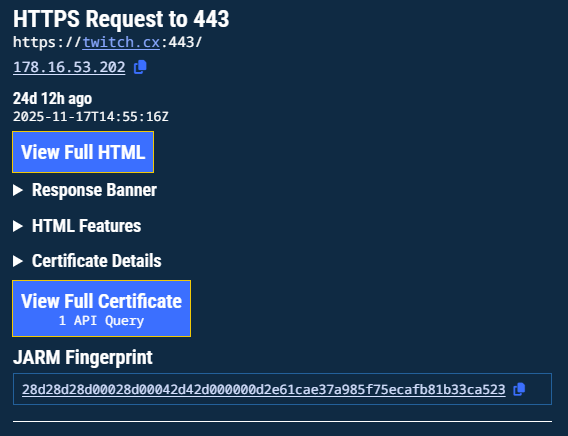
Detailed indicator view
Pivot directly into Core Search
You can pivot into deeper analytics by selecting hyperlinked data in the results table:
- Select Host/IP to open a Core Search and reveal DNS history, SSL associations, reputation, and linked indicators.
- Select Response/Path to view content-specific observations across multiple hosts.
Review retrohunt output
Retrohunt results appear in the History tab and follow the same structure as All Matches.
Retrohunts represent matches identified across historical telemetry and are essential for reconstructing earlier activity and analyzing how adversary attack patterns have changed over time.
Learn how to retrohuntFor details on configuring and executing retrohunts, see the separate Retrohunt with YARA Rules article.
Export matches
To retrieve historical match content for offline or comparative analysis:
- Open the YARA rule.
- Select either All Matches tab.
- Select the matches you want to download.
- Click the Export button
- Select your data format (JSON or CSV)
- Select Download.
Updated 10 months ago