
Retrohunt with YARA rules
Learn how how to configure, execute, and interpret YARA retrohunts.
Retrohunting allows you to run a YARA rule against historical telemetry collected by Validin’s virtual host dataset.
This enables analysts to uncover older matches, validate rule effectiveness, and reconstruct activity that may no longer appear in live traffic.
When to use retrohuntingRetrohunting is valuable when:
- A rule was created after an incident began, and you need to identify earlier matches
- Infrastructure has been taken offline and no longer appears in All Matches
- You want to validate rule quality across a broader dataset
- Comparing behaviour across multiple rule versions
Execute a retrohunt
Each YARA rule includes a dedicated retrohunt workflow.
To open a configuration modal, where all retrohunt parameters are defined:
- Open a Project.
- Select the YARA Rules tab.
- Select the rule you wish to investigate.
- Click Start to the right of the Retro Hunt label.
1. Choose a rule version
Validin stores every saved version of a YARA rule. Retrohunts can be executed against any previous version using the Rule Version selector.
Only the selected version is executed during the hunt.
2. Set a lookback period
The Lookback selector determines how far back in time Validin should search.
Options include:
- 1 Hour
- 1 Day
- 1 Week
Lookback usageHigher lookbacks cover more telemetry but increase data volume and API cost.
The modal displays a Run Summary based on your chosen lookback period, including:
- Estimated data volume to be scanned
- Start and end timestamps of the lookback window
- Expected query usage
3. Select data sources
The HTML Response Source field controls which datasets the rule will scan. Currently available:
- Virtual Host: Executes the rule against returned page content collected by Validin from domain scanning using host headers and/or SNI.
- IPv4: Executes the rule against returned page content collected by Validin from internet-side IPv4 address scanning.
More informationTo learn more about each of these sources of host responses, see here
4. Configure completion notifications
Choose how to be notified when the retrohunt completes:
- None
- Alert (in-platform)
- Alert and Email
5. Run the retrohunt
After setting configuration parameters:
- Select Run.
- The retrohunt begins processing historical data.
- You will be notified according to the configured completion option.
Retrohunt progress and past executions are tracked within the History tab for each rule.
View previous retrohunt runs
All completed retrohunts are visible under the rule’s History tab.
Each run includes:
- Status
- Completion time
- Lookback range
- Initiating user
- Rule version used
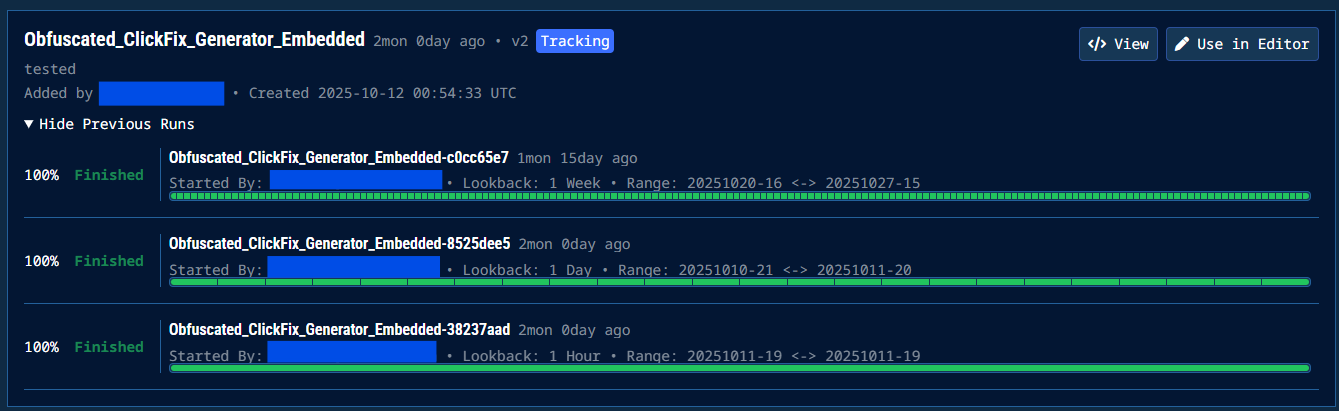
Runs can be expanded or collapsed to manage long histories.
Selecting a completed run loads its full match output in the familiar results-table layout used by All Matches.
Using retrohunt results
Retrohunt results follow the same schema as live match results:
| Field | Description |
|---|---|
| Host/IP | Host or resolved IP where a match was observed historically. |
| Port | Destination port for the captured response. |
| Response/Path | URL or resource where the match occurred. |
| Title | Parsed HTML title of the returned document. |
| Bytes Received | Size of the archived HTTP response. |
| First Seen | Earliest historical observation in the lookback window. |
| Last Seen | Most recent observation within the retrohunt range. |
| Last Match Time | Timestamp of rule match within historical data. |
| Count | Number of times the matched resource appeared. |
Retrohunt status and completion panel
When a retrohunt is running or has recently completed, a status bar appears in the rule header that summarizes execution details, and provides visibility into progress and resource usage.
If a retrohunt is still in progress, a status bar and a Cancel button is displayed, allowing the user to track and terminate the request.
Once the retrohunt completes, results become available in the History tab, grouped under the specific retrohunt run.
Comparing retrohunt and live results
Retrohunting produces matches that are effectively equivalent to live matches and will appear with the All Matches table. If a live rule has previously matched an host response that is later scanned again via a retrohunt with the same version, the match will not be displayed twice.
Updated 8 months ago