
Live Scan results
Learn how to interpret Live Scan results to quickly identify issues and security risks.
Live Scan results provide real-time visibility into how a website behaves across global regions and platforms.
View scan results
When a Live Scan completes, the Results table displays DNS and host response outcomes for the scanned domain/URL.
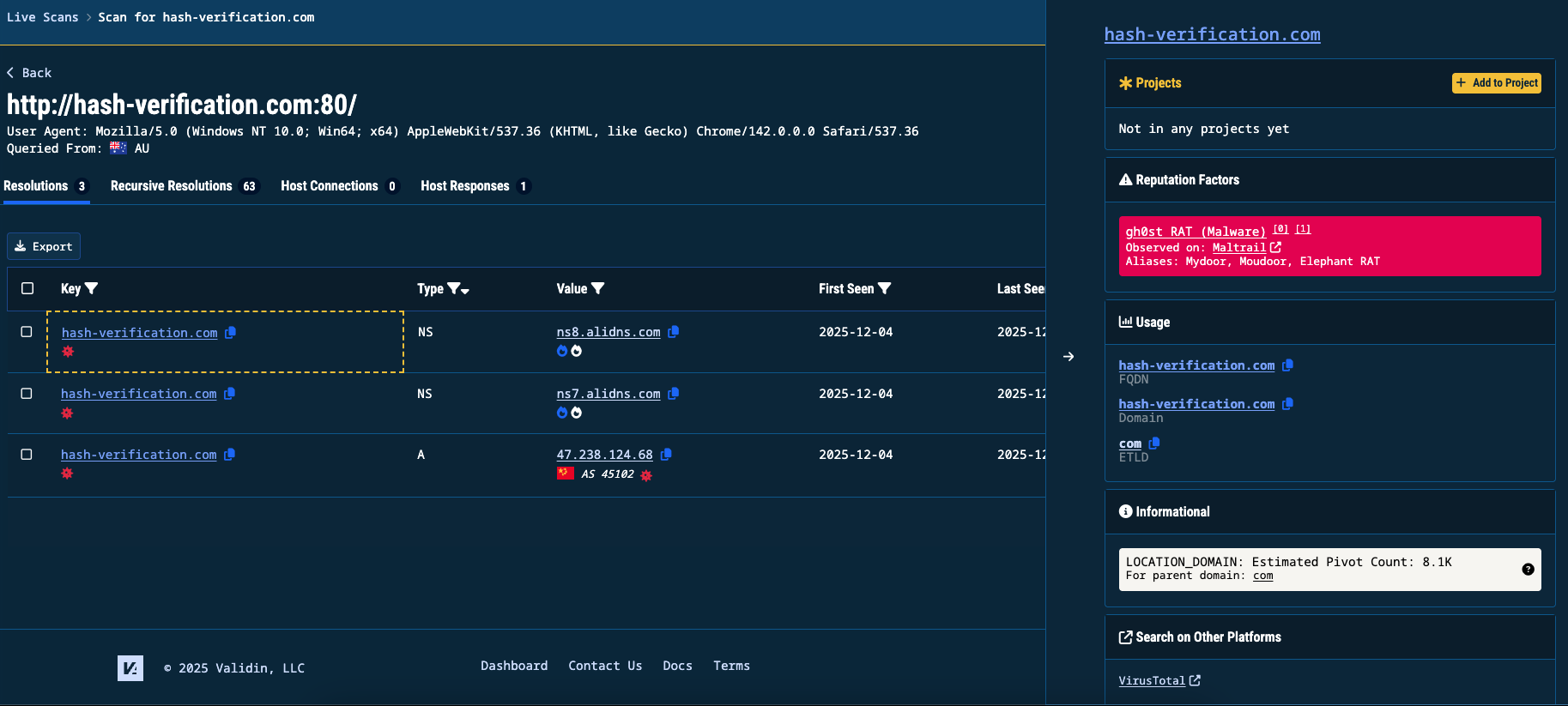
Live Scan results screen
| Column | What it means |
|---|---|
| Key | The domain or IP queried during the scan |
| Type | The record or response (for example, A, NS, NX) |
| Value | The resolved indicator (IP, hostname, etc.) |
| First Seen / Last Seen | When the indicator was observed |
| Region | The geographic origin of the query |
Review returned data
Use the tabs at the top of the Results table to examine different data types related to the scanned domain/URL.
- Resolutions: Primary DNS results
- Recursive Resolutions: Additional resolution paths discovered during recursion
- Host Connections: TCP connections created by scanned hosts
- Host Responses: HTTP status codes, redirects, and behaviors
You can click Export to download the current view.
Inspect indicators
- Click on an indicator to immediately execute a Core Search
- Click any cell containing an indicator in the Results table to open a sidebar and gather additional intelligence.
This panel can include:
Reputational factors
- Malware associations
- Known malicious behavior
- Intel source references
Indicator usage
- How the indicator appears in DNS hierarchy (FQDN / Domain / ETLD)
- Hosting ownership (ASN)
- CIDR allocations
Infrastructure location
- Approximate hosting location
- Geographic risk considerations
External intelligence pivots
- VirusTotal
- URLScan
- crt.sh
TipLook out for a red asterisk icon underneath any indicator with a poor reputation score.
Exporting results
You can export results for investigation, reporting, or offline analysis.
- Select Export at the top of the table
- Under Data Format, choose:
- JSON
- CSV
- Under Data to Export, choose one of the below options:
- Export Current Page downloads only the visible results
- Export All Entries downloads all matching domains across pages
- Export with Selected Filters applies your active filters to the export
- Select Download to save the file
Viewing historical results
The Historical Scans tab allows you to view thew details of all the scans initiated under your user account.
To revisit a Live Scan dataset, click on a result from the table.
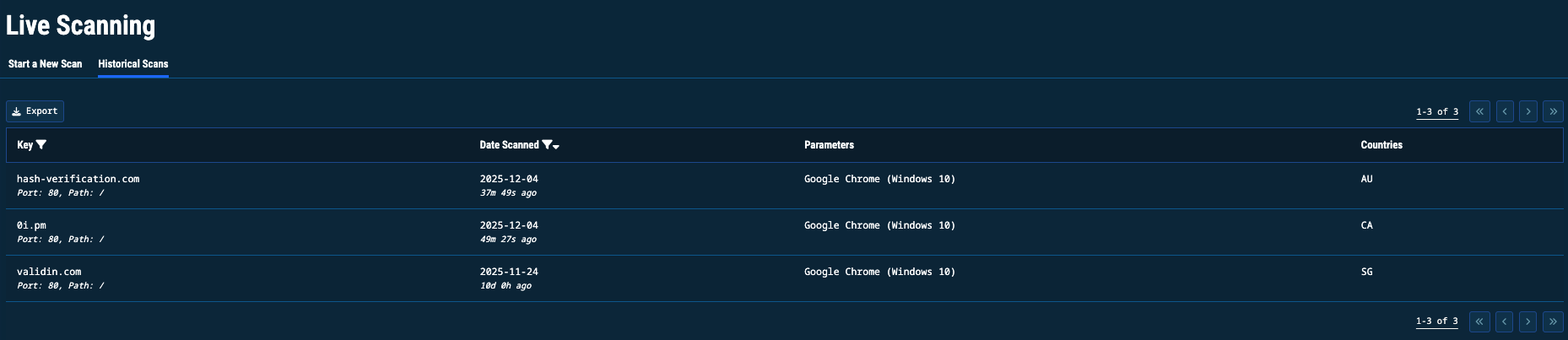
Historical scan results
Updated 11 months ago